
Coloring Guide
How to Print Coloring Pages at Home
A simple home-printing checklist for choosing paper, checking settings, and getting a clean coloring page from your printer.
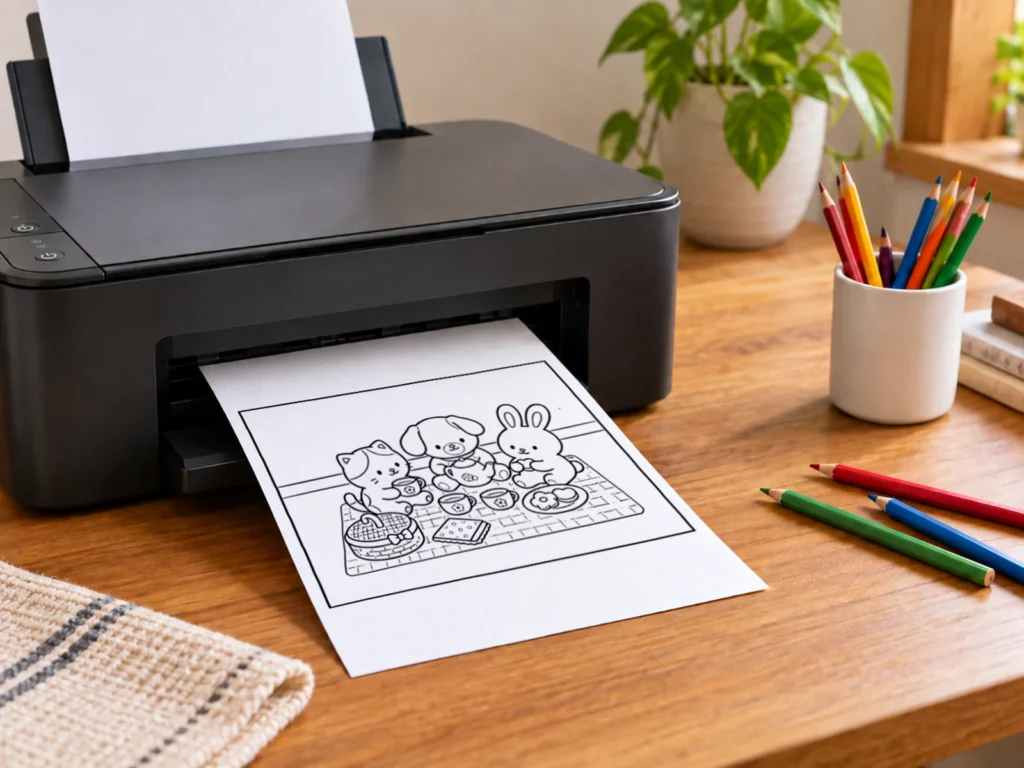
Printing coloring pages at home can be quick and satisfying when you give the paper and printer settings a short check first. The Coloring Studio pages offer both a browser-friendly Print Page option and a Download PDF option, so you can choose the route that fits your printer and your coloring plans.
The page pictured above is our Cozy Pet Tea Time coloring page if you would like to try the same design.
Choose how you want to print
Use Print Page when you want to send a single coloring page straight to your browser’s print dialog. It is a convenient choice when you are ready to color now. Choose Download PDF when you want a saved copy to print later, open in a PDF app, or keep with other activity files. Both options are designed to help you print at home; the FAQ explains the difference in a little more detail.
Choose paper that works for your coloring tools
Plain printer paper is an easy starting point for crayons and colored pencils. If you plan to use markers, try a slightly heavier sheet first and place a spare sheet underneath while coloring to protect the surface below. The best choice depends on your printer’s supported paper types, so check its manual before using cardstock or anything unusually thick.
- Crayons: standard printer paper usually works well.
- Colored pencils: smooth paper makes it easier to build light layers.
- Markers: use heavier paper if your printer supports it, and test for bleed-through.
Check your printer settings
Open the print dialog and pause before pressing Print. A few settings make the difference between a clean page and artwork that is clipped, too small, or turned sideways.
Paper size
Match the paper size in the print dialog to the paper in your tray. Letter and A4 are common, but they are not the same size. If the dialog shows a mismatch, correct it before printing so the page has room for the full line art.
Orientation
Choose portrait for a tall page and landscape for a wide scene. Most print dialogs show a preview, which is the fastest way to spot an orientation problem before paper is used.
Scale and fit
Start with the print dialog’s default fit setting and inspect the preview. If artwork looks cropped, choose an option that fits the printable area. Avoid enlarging a page beyond what your printer can print cleanly, especially when the design includes fine details near an edge.
Margins
Home printers commonly leave a small unprintable border. That is normal. If a preview cuts into the artwork, reduce the scale slightly or select a fit-to-page option rather than forcing borderless printing.
| Check | What to look for |
|---|---|
| Paper | The tray and print dialog name the same size. |
| Preview | The full line-art design is visible and readable. |
| Orientation | The design is upright and uses the page naturally. |
| Scale | Edges are not clipped and details are not unexpectedly tiny. |
| Print quality | Normal or Standard is selected when you want clear, consistent line art. |
Use Normal or Standard print quality
For coloring pages, choose Normal or Standard print quality when your printer offers those options. Draft or Economy modes can make fine outlines look lighter or less crisp. If you plan to print several pages or copies with the same settings, printing one first can help you check the result before sending the whole batch.
Common printing problems
- The page is cut off: confirm paper size, then use fit-to-page or reduce scale slightly.
- The page is sideways: switch between portrait and landscape while watching the preview.
- Lines look faint: make sure Draft or Economy mode is not selected and try Normal or Standard quality. If other documents also look faint, run the printer’s usual maintenance check.
- The PDF opens differently: use its own print dialog, then repeat the same paper-size and preview checks.
Quick printing checklist
- Open the line-art view of the coloring page.
- Choose Print Page for an immediate print or Download PDF for a saved copy.
- Match the dialog’s paper size to your paper tray.
- Check orientation, scale, margins, and the preview.
- Use Normal or Standard print quality for clear line art. If you are printing several pages or copies with the same settings, test one before sending the whole batch.
Put the guide into practice
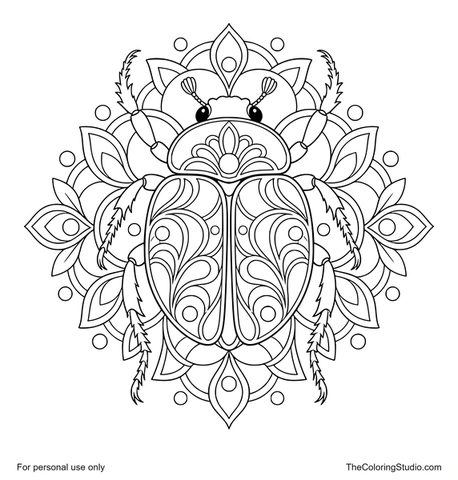
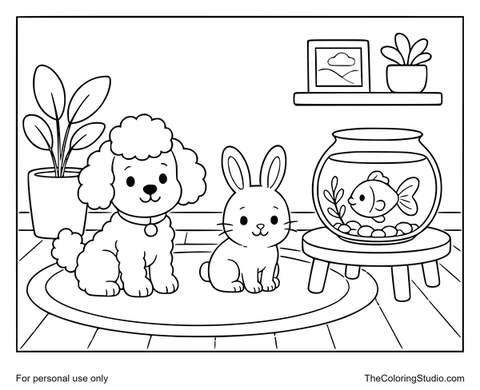
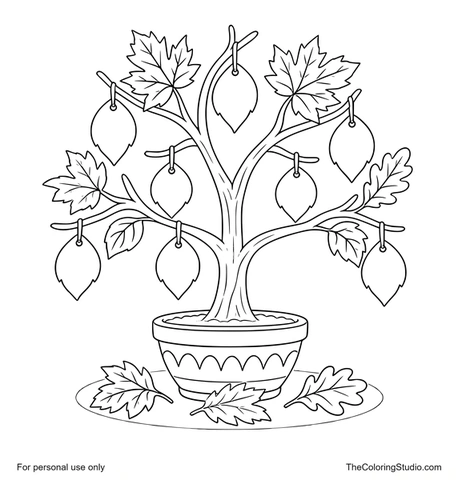
Try These Coloring Pages
From learning to coloring
Ready to Color?
Explore free printable coloring pages for your next creative moment.
Browse All Coloring Pages